MacBook too hot? Check this before changing fan speed
A warm MacBook under sustained load can be normal. Heat that continues while nearly idle deserves investigation. Fan control does not apply when no fan is detected, and software should not conceal possible hardware warning signs.
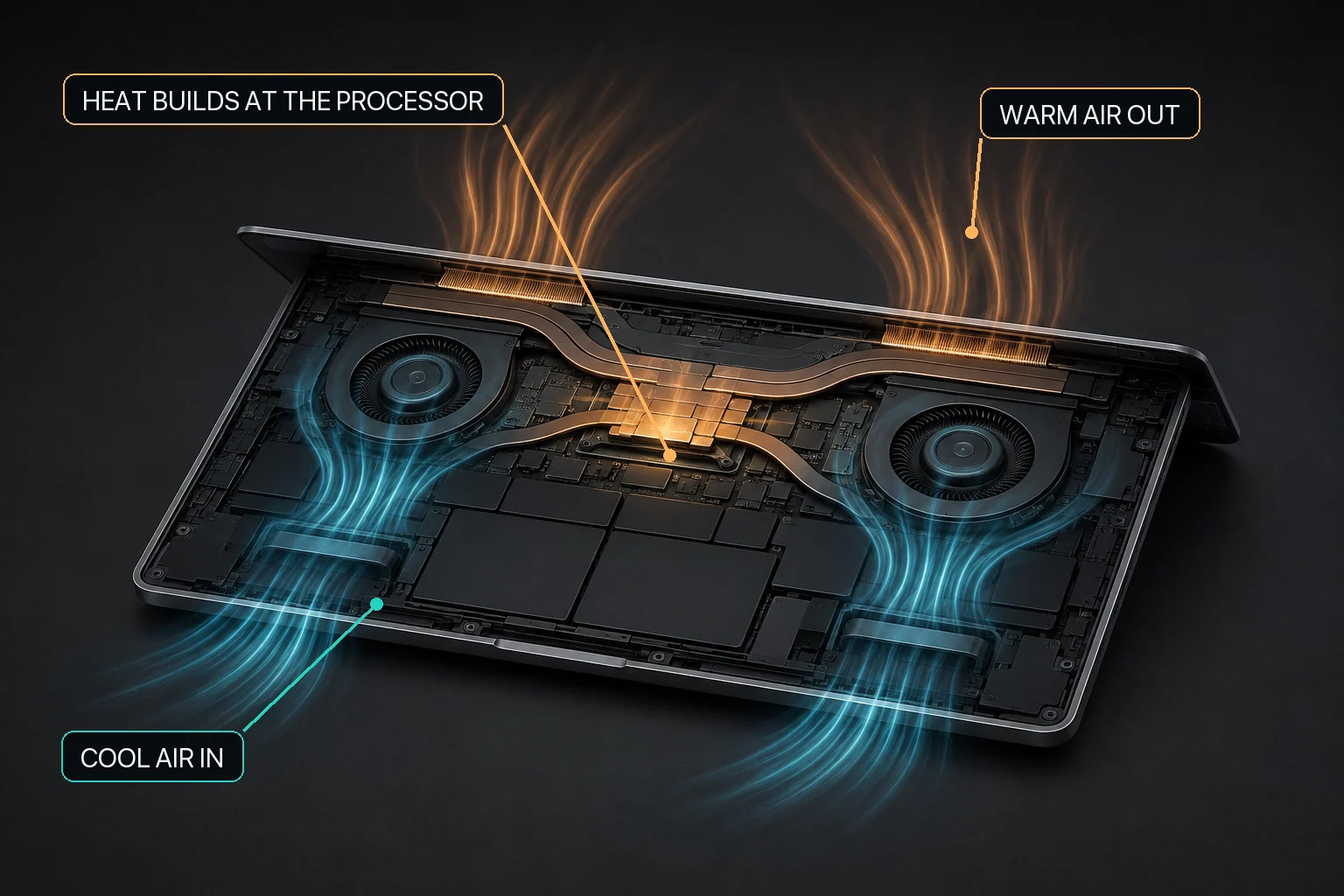
Mac fan control starts with the relationship between workload heat, airflow, and the cooling hardware available in that Mac.
The short answer
A MacBook getting warm during a video export, game, build, local AI inference, or other sustained CPU or GPU work can be normal. Apple says Mac laptops use internal sensors and, on models that have them, fans to manage temperature. A warm enclosure or an active fan does not by itself establish a fault. See Apple’s operating-temperature guidance.
Start with macOS, not a fan setting. Update macOS, put the Mac on a stable surface with clear ventilation, and use Activity Monitor to find a process using unusually high CPU. If the Mac remains unusually hot while idle, investigate the cause instead of hiding the symptom with a higher fan speed.
A MacBook becoming hot during sustained CPU, GPU, or local-AI workloads does not by itself indicate a hardware problem. First check the active workload, ventilation, ambient conditions, and whether the Mac remains unusually warm after the workload ends. Fan control is relevant only on supported Macs with active cooling fans; it does not apply to a Mac with no detected fan and should not be used to diagnose a hardware fault. MacBaram can show CPU-temperature and fan-RPM trends and provide optional fan control on supported hardware, but no current MacBaram evidence establishes that changing a fan setting will lower temperature, improve performance, extend hardware life, or prevent damage.
A 30-second heat decision table
Start with the condition that best matches what the Mac is doing now. This is a triage guide, not a diagnosis.
First response by observed MacBook heat condition
What you observe
What it may mean
First response
MacBaram relevance
Warm only during demanding work
Heat associated with sustained load can be expected.
Keep vents clear and see whether the Mac cools after the work ends.
Optional observation; fan control only on supported fan-equipped Macs.
Hot while nearly idle
A background process, software issue, or another condition may still be active.
Check Activity Monitor, update software, and restart.
Do not use a fan setting to conceal the unexplained load.
Fan runs fast for a long time
The Mac may still be processing work or dealing with restricted airflow.
Check CPU use, airflow, and Apple’s fan guidance.
Fan state can be observed; manual control is not a diagnosis.
Fanless MacBook Air becomes hot
The enclosure is dissipating heat without an active fan.
Reduce or pause the workload and improve airflow around the Mac.
Fan control is unavailable because there is no fan to control.
Unexpected shutdown, battery swelling, smell, or recurring abnormal heat
A service or hardware investigation may be needed.
Stop treating it as a tuning problem; use Apple Diagnostics or service.
Software control is not the right response.
What to check before changing anything
Before changing fan behavior, identify the workload, inspect CPU activity, confirm ventilation and room conditions, update the software, and then observe whether the heat continues at idle.
Name the workload. Note whether the heat began during rendering, compiling, gaming, local AI, video calls, indexing, or another long task.
Check CPU use. In Activity Monitor, sort the CPU view and look for a process consuming resources after you expected it to stop.
Check the surface and vents. Apple recommends a stable work surface with good ventilation rather than a bed, pillow, or other soft surface that can affect airflow.
Check room temperature. Apple specifies an ambient operating range of 10–35°C (50–95°F) for Mac laptops.
Update, then restart. Install current macOS and app updates. A restart also helps separate a persistent condition from a process that became stuck.
Observe the idle state. After the work ends, give the Mac time to settle. Heat that persists while nearly idle deserves a different investigation from heat that follows a known workload.
Heat that follows a known sustained workload can be expected, while heat that remains after the workload ends needs a separate software or hardware investigation.
Heat that follows a sustained workload
CPU and GPU work consumes power and produces heat. Long compiles, exports, games, and local AI workloads can hold that demand for minutes or hours. The useful question is not simply “Is the Mac hot?” but “Does the heat track a known workload, and does the state change after that workload ends?”
Heat that persists after the workload stops
If CPU use remains high, identify the process before changing thermal controls. If CPU use is low but abnormal heat, shutdowns, charging problems, or other symptoms continue, move from software tuning to diagnostics. A manual fan curve cannot explain the cause.
Why local AI deserves its own context
Local model inference can keep CPU, GPU, memory, and power activity elevated for a long time. That makes it a useful example of sustained load, not a special exception to macOS thermal management. For workload-specific preparation, see the local AI workload guide.
MacBook Pro with fans and fanless MacBook Air need different advice
A fan-equipped Mac can move more air when its control system calls for it. Some MacBook Air models have no active cooling fan. On those fanless models, no app can create fan cooling or expose fan controls that do not physically exist.
MacBaram checks detected fan count before making fan control available. If the detected count is zero, fan control is treated as unsupported. Battery, sleep, and status features are separate capabilities; their availability does not mean a fanless Mac has gained fan control.
Do not diagnose the Mac from one temperature number
Internal sensor readings need model, workload, power, fan, and airflow context. Apple warns that third-party temperature utilities do not measure the external case temperature and should not be used to diagnose a possible hardware issue. That boundary is explicit in Apple’s Mac laptop temperature article.
Look for a pattern instead: what workload was running, whether CPU use and fan state changed, whether the Mac cooled after the work stopped, and whether the same behavior appears at idle. A trend can support an operating decision; it does not turn MacBaram into a hardware diagnostic tool.
What fan control can—and cannot—change
Fan control can change requested fan behavior on supported fan-equipped Macs, but it cannot identify the cause of heat, repair hardware, or prove a cooling, performance, lifespan, or damage-prevention outcome.
What it can change on a supported Mac
Fan control can change the requested fan behavior. MacBaram provides a unified fan curve, Silent, Balanced, and Performance presets, and user-defined fan presets on supported Macs with detected fans, with the current save/update flow retaining up to three. The user can also return fan intervention to macOS defaults.
What it cannot establish
A fan setting does not identify a background process, unblock a vent, repair a fan, diagnose a sensor, resolve battery swelling, or add a fan to a fanless Mac. Without a controlled, workload-specific comparison, it also does not establish that a setting lowers temperature, improves performance, extends component life, or prevents damage.
MacBaram treats Mac control as a feedback process rather than a collection of unrelated switches. The method comes from an instrumentation mindset: make the state visible, identify the condition, change only a supported control, and preserve a known route back.
1. Observe
Start with the state that is actually visible. CPU-temperature and fan-RPM trends can help show whether heat appears with an active workload or persists after that workload changes. A trend is context, not a hardware verdict.
2. Decide
Separate the conditions before changing a control. Fan behavior, battery charging, sleep behavior, workload, and thermal state are related, but they are not the same problem. Hardware support matters: a Mac with zero detected fans is unsupported for fan control.
3. Intervene
If the Mac supports the control and there is a clear reason to change it, the user can select an available fan preset or a user-defined curve. Battery charging and sleep controls remain separate because they address different operating conditions.
4. Restore
Every intervention needs a way back. MacBaram provides a user-facing return to macOS default fan behavior so an intentional fan choice can be ended clearly.
The claim is intentionally narrow. Observe the state, choose only a supported control, make one intentional change, and keep a route back to macOS defaults. This method does not claim that MacBaram is better than Apple’s thermal management.
Where current MacBaram controls fit
This table separates implementation-backed capabilities from outcomes that have not been established by real-world comparative testing.
MacBaram capabilities and boundaries relevant to MacBook heat
Operating area
Current, implementation-backed capability
Boundary for this heat guide
Observation
Displays CPU-temperature and fan-RPM trends.
Shows operating context; does not diagnose hardware.
Fan
macOS default mode, unified curve, three named presets, and user presets on supported fan-equipped Macs; the current save/update flow retains up to three.
No fan control when zero fans are detected; no guaranteed cooling or performance result.
Battery
Optional charge limits and charging policies on supported battery-equipped Macs.
Charging policy is not a substitute for diagnosing chassis or CPU heat.
Sleep
Separate controls to prevent system sleep or display sleep.
Keeping a Mac awake can prolong a workload; it is not itself a cooling action.
Restoration reduces control ambiguity; it does not prove a safety or lifespan outcome.
Where battery and sleep controls fit—and where they do not
Charging, long workloads, sleep behavior, and heat can occur at the same time, so it is useful to view them together. They still require separate decisions. A charge limit changes charging policy; it does not fix an unknown hot process. Preventing sleep keeps an intended task running; it can also keep the workload and its heat active for longer.
Use the battery charge-limit guide for charging decisions and the keep-awake guide for sleep behavior. Do not turn either into a generic answer to every heat complaint.
How to test one change without fooling yourself
Record a baseline, change only one variable, repeat the same workload, record trade-offs, and return to macOS defaults before drawing a conclusion.
Record the baseline. Note the Mac model, macOS version, room conditions, power connection, workload, duration, CPU-temperature trend, and fan state.
Change one variable. Do not change the workload, fan preset, power source, and room conditions at the same time.
Repeat the same work. Compare like with like and allow a similar warm-up period.
Record trade-offs. A change in fan behavior can also change noise. Do not report only the result you hoped to see.
Return to macOS defaults. Confirm that the comparison has a known end state.
MacBaram has not yet published a workload-specific dataset proving lower temperatures, higher performance, longer battery life, or damage prevention. Until such tests are documented, those outcomes remain unclaimed.
When software control is not the right response
Use Apple Diagnostics and seek Apple or authorized service help when abnormal behavior persists or diagnostics report a possible hardware issue. Stop treating the situation as a tuning problem if you notice battery swelling, smoke or an unusual smell, liquid damage, a fan that appears mechanically faulty, repeated unexpected shutdowns, or heat that remains unexplained after software checks.
MacBaram is not a hardware diagnostic or repair tool. It cannot repair a blocked vent, failing fan, battery fault, sensor fault, or damaged component. A manual setting should never be used to conceal a symptom that needs investigation.
Evidence status and claim limits
External guidance, product implementation evidence, and comparative outcome evidence have different authority and are kept separate.
External guidance
Primary-source Apple guidance for operating temperature, ventilation, Activity Monitor, fan behavior, and diagnostics is linked directly beside relevant claims and listed again below.
MacBaram implementation evidence
The product behavior described above was checked against the current MacBaram implementation and feature-evidence audit on August 29, 2026.
Comparative outcome evidence
No public workload-specific comparison is currently presented for temperature, performance, lifespan, or damage prevention. This guide does not make those claims. The reviewed date changes only when the guidance or product evidence is substantively rechecked.
MacBook heat questions and answers
Why did my MacBook suddenly get so hot?
A MacBook can become hot when CPU or graphics work increases, but sudden heat is worth checking in context. Start by looking at the active workload, ventilation, and whether the Mac cools down after the task ends. MacBaram can help by showing CPU-temperature and fan-RPM trends so you can see how those states change together.
Why is my MacBook hot even when I am not doing much?
Heat while the Mac appears idle can come from background apps or processes that are still using resources. Check Activity Monitor and confirm whether any unexpected workload is continuing. MacBaram can add context by showing CPU-temperature and fan-RPM trends, but it does not identify the hardware or software cause for you.
My MacBook Air has no fan. Is that normal?
Some MacBook Air models use a fanless design, so there is no cooling fan for software to control. If a fanless Mac becomes hot, first reduce or inspect the workload and make sure airflow around the computer is not blocked. MacBaram can still show CPU-temperature trends, but fan control is unavailable when no supported cooling fan is detected.
Will changing the fan settings fix my MacBook overheating?
Fan control can change fan behavior on supported fan-equipped Macs, but it is not a universal fix for every heat problem. First check the workload, ventilation, and whether the heat continues while the Mac is otherwise idle. MacBaram provides macOS default behavior, a unified fan curve, Silent, Balanced, Performance, and user presets without guaranteeing lower temperature or higher performance.
How can MacBaram help when my MacBook feels too hot?
MacBaram helps you observe the Mac before deciding whether to change anything. It shows CPU-temperature and fan-RPM trends and, when supported cooling fans are detected, lets you keep macOS default fan behavior or choose an available curve or preset. These controls provide visibility and user choice; they do not replace hardware diagnosis or guarantee a specific thermal result.
When should I use Apple Diagnostics or get my Mac serviced?
Use Apple Diagnostics or seek service when heat is accompanied by repeated shutdowns, obvious hardware symptoms, unusual mechanical fan noise, battery swelling, or other signs that suggest a hardware problem. MacBaram can provide CPU-temperature and fan-RPM context and supported fan controls, but it is not a hardware diagnostic or repair tool.
Primary sources and revision history
This guide was reviewed against Apple documentation and the current MacBaram implementation on August 29, 2026.
August 29, 2026: First publication; added Apple-first triage, fanless boundaries, MacBaram capability evidence, test method, and explicit claim limits.