Can a Mac keep working while the display is off?
Often, yes. Display sleep and system sleep are separate behaviors, although the available settings depend on the Mac, macOS version, power source, and workload.
 MacBaram
Choose the narrowest sleep setting that keeps the job running. Display sleep, system sleep, the lock screen, and lid-closed behavior are related—but not the same.
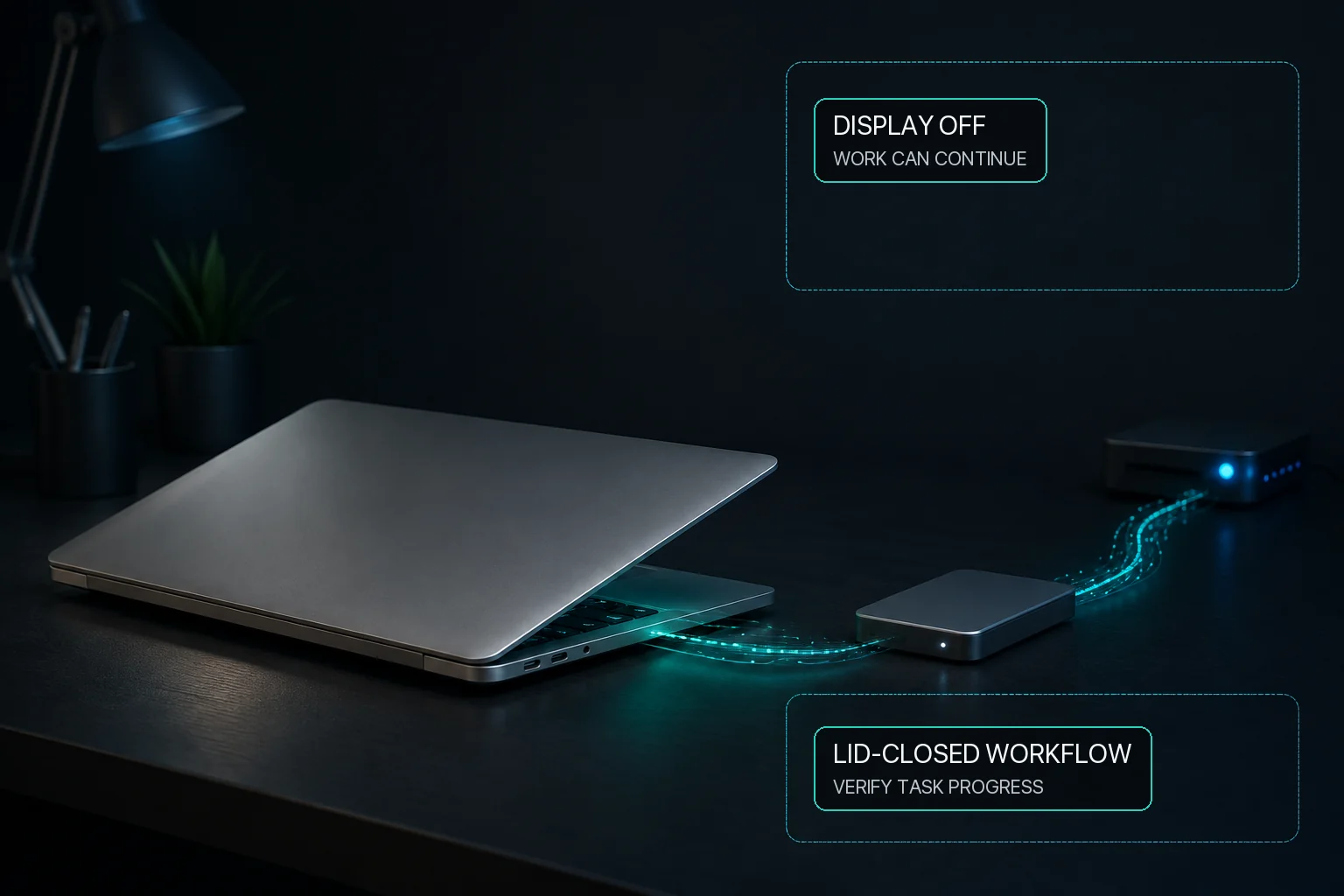
When a long task stops because the Mac sleeps, first identify whether the problem is system sleep, display sleep, or closing the lid, because those are different situations. macOS lets the display sleep without necessarily putting the whole system to sleep. MacBaram gives users separate controls for keeping the system awake and keeping the display awake. Where Virtual Clamshell is available, MacBaram can also keep a lid-closed workload running without an external monitor. Test the exact workload before relying on any unattended setup.
Evidence for this answer: Apple's IOPM documentation provides the platform distinction between system-sleep and display-sleep assertions. MacBaram-specific behavior is supported by MB-EVID-SLEEP-001 and MB-EVID-VCLAM-001, covering separate sleep controls and the documented conditional Virtual Clamshell user-visible boundary.
For the underlying state definitions and a verification method, read system sleep versus display sleep on Mac.
Turning off the display does not always mean the Mac has stopped working. macOS can treat display sleep and system sleep as different states. The correct setting depends on whether you need a background job to continue, the screen to remain visible, or both.
Start with macOS System Settings. Its available options vary by hardware and macOS version, so check the settings shown on the Mac you actually use.
Keep the system awake only as long as the task needs. The display can usually be allowed to sleep unless you need to watch a visual status panel.
Prevent display sleep when the screen itself must stay visible. Keep normal authentication and lock-screen protections in place.
Ordinary idle-sleep prevention and closing the lid are different situations. Where Virtual Clamshell is available, MacBaram can keep a lid-closed workload running without an external monitor. Test the exact workload before relying on it.
Staying awake does not guarantee completion. Apps, networks, storage, power, and system updates can still interrupt a job.
MacBaram provides separate controls for preventing system sleep and preventing display sleep. This distinction lets a user keep a background build, render, download, transfer, or local AI job running without automatically requiring the display to remain on.
For lid-closed work, MacBaram offers Virtual Clamshell as a separate user-facing choice. Where the feature is available, it can keep a workload running with the lid closed and no external monitor. Test the exact workload before relying on it. Virtual Clamshell does not guarantee that a renderer, build tool, AI app, network, or storage device completes its own work.
Not every long-running task needs a third-party keep-awake utility. macOS already provides sleep and display settings, so start by deciding whether those built-in controls are enough for the workload. If you need more flexible session control or conditional keep-awake behavior, a dedicated utility can be a good fit.
The right tool depends on whether sleep is the whole problem or one part of a larger operating workflow. Amphetamine is focused on keeping a Mac awake, with separate system and display controls, configurable triggers, and closed-display support. MacBaram is aimed at long workloads where sleep control may need to sit alongside CPU-temperature and fan-RPM trends, supported fan choices, charging controls, and Virtual Clamshell when available.
| Need | Evidence-backed fit | Why |
|---|---|---|
| Use macOS settings | macOS sleep and display settings | Use the operating system's own settings when you only need ordinary sleep or display behavior and those controls already fit the task. This is the simplest baseline before adding a dedicated keep-awake utility. |
| Focused keep-awake control | Amphetamine | Amphetamine's official App Store listing documents separate system and display sleep control, triggers based on applications, CPU activity, power, and connected devices, and support for closed-display sessions. On Apple silicon, its Closed-Display Mode Power Protect component requires a separate download and installation. |
| Long-workload operating control | MacBaram | MacBaram provides separate system-sleep and display-sleep prevention. The same operating view can also include CPU-temperature and fan-RPM trends, supported fan choices, selected charging controls, and Virtual Clamshell when available for maintaining a lid-closed session without an external monitor. |
Often, yes. Display sleep and system sleep are separate behaviors, although the available settings depend on the Mac, macOS version, power source, and workload.
It should not. A stay-awake control and the security requirement to lock or authenticate are separate settings. Do not weaken lock-screen security just to keep a task running.
Where Virtual Clamshell is available, MacBaram can keep a lid-closed workload running without an external monitor. Test the exact workload before relying on it; the application still determines whether the complete job succeeds.
If your main goal is focused keep-awake control, Amphetamine is a strong fit: its official App Store listing covers separate system and display sleep control, triggers based on apps, CPU activity, power, and devices, plus closed-display sessions. MacBaram is the stronger fit when sleep control is part of a broader long workload that also involves fan state, CPU-temperature and fan-RPM trends, charging policy, or Virtual Clamshell when available.
For a long AI, render, build, or lid-closed workflow, first decide whether you only need to keep the Mac awake or need to manage several operating states together. Amphetamine is a focused keep-awake option with configurable triggers and closed-display support. MacBaram is more directly matched when the same workflow also needs separate sleep controls, fan and thermal context, charging choices, or Virtual Clamshell when available without an external monitor.