
MacBaram

Fan, battery, and sleep. One app for your Mac.

One control system for creators and developers running video, AI, and other demanding workloads on Mac.

  • Apple silicon M1 or later(Intel Macs not supported)
  • MacBook
  • Mac mini
  • Mac Studio
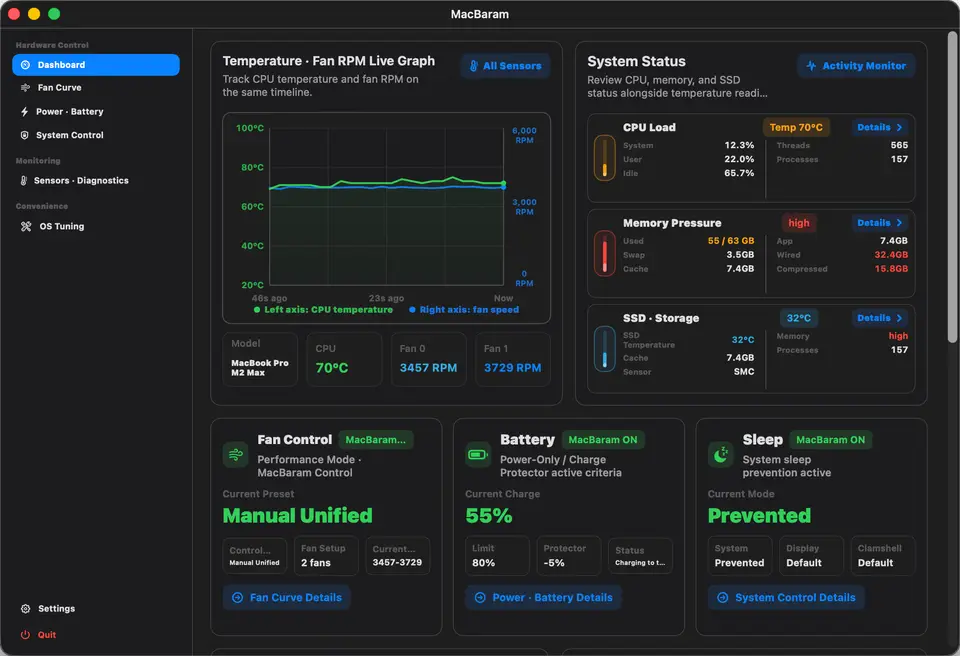
MacBaram dashboard showing fan, battery, and sleep controls
SCROLL DOWN

It began with problems we experienced ourselves.

What if all of them could be controlled together?

Protecting continuous work meant manually coordinating separate apps.

  1. 01

    What if an overnight AI, render, or build job stops when the Mac sleeps?

    Long-running work should not stop just because macOS entered sleep.

  2. 02

    Why should remote Codex work require an external display?

    The display session and remote control should continue with the lid closed and no extra device.

  3. 03

    It stopped at 80%. Is the Mac really running on adapter power alone?

    We wanted to see the actual adapter-only state, not just a percentage.

  4. 04

    Why do the fans react only after the Mac is already hot?

    We wanted cooling to begin at the temperature and speed chosen by the user.

  5. 05

    Why do fan, battery, and sleep apps not understand each other?

    Their settings should not conflict; they should respond together to the same state.

  6. 06

    Can the Mac stop before mobile work drains the battery completely?

    Work should continue as long as possible, then let the Mac sleep safely.

  7. 07

    If the battery is hot, why do charging and cooling move separately?

    Charging and cooling should respond together to the same battery temperature.

  8. 08

    If a job stopped overnight, why can I not see the reason?

    We wanted a record showing whether temperature, power, or sleep interrupted the work.

  9. 09

    Why reset several apps every time the work changes?

    We wanted to stop reopening and adjusting fan, charging, and sleep settings one by one.

MacBaram

Fan Control

Before

The familiar frustration

If the fans suddenly surge only after a long local-AI or rendering job begins to stutter, the response is already late. In a quiet café or recording space, fan noise that changes with every small temperature shift can break concentration.

MacBaram

The MacBaram approach

For long local-AI, build, and render workloads, choose a fan curve or preset that matches the work and surroundings. MacBaram shows temperature and fan-RPM trends together so you can compare the response and choose the balance between noise and cooling.
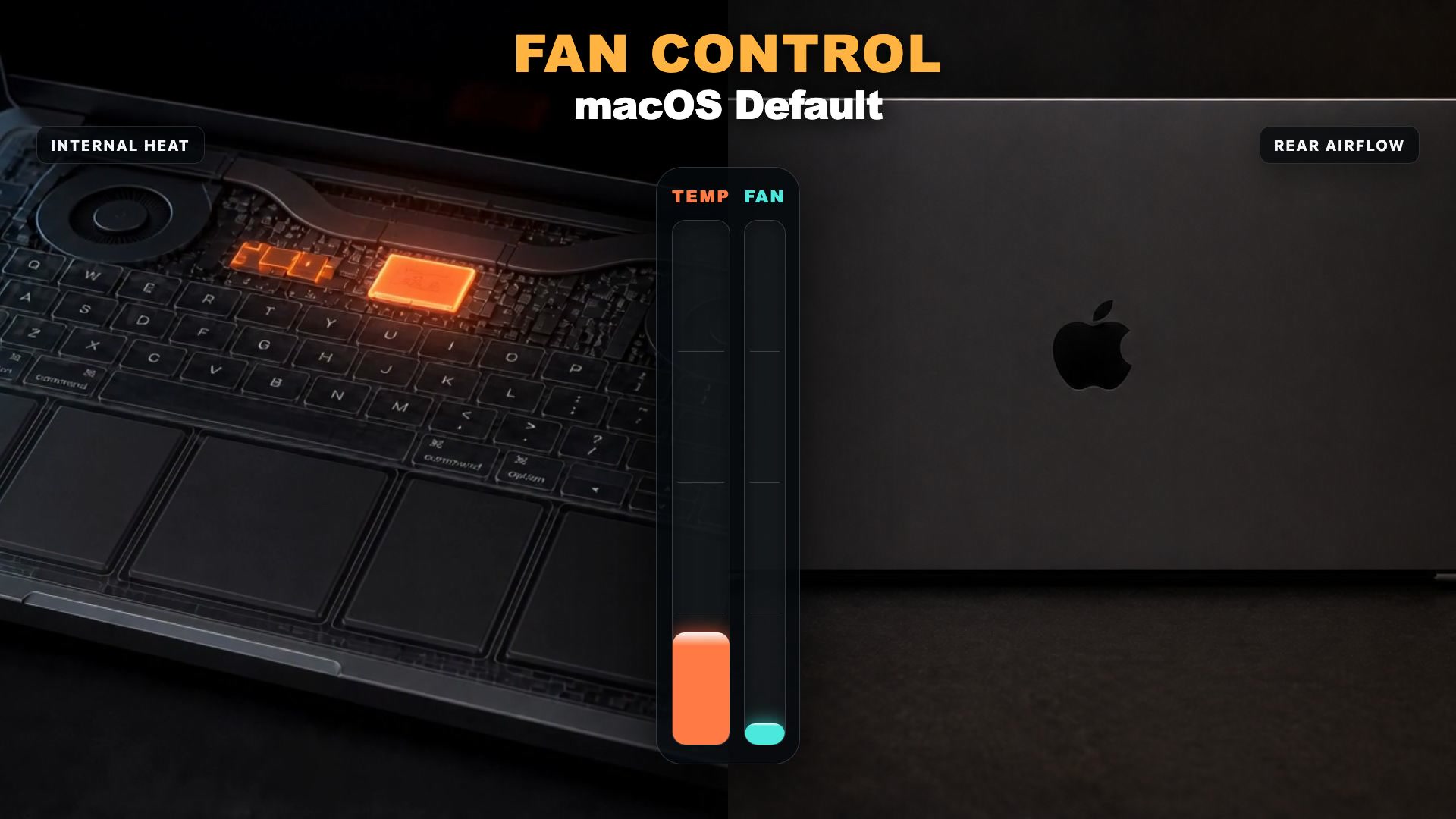
MacBaram fan control feature preview
Fan Curve Setup

MacBaram brings the familiar fan-curve control of Windows PCs and BIOS tools to the Mac. Fine-tune fan output by temperature range, see current temperature and fan response on one graph, and save curves for different workloads.

Preset Switching

Apply Silent for quiet spaces, Balanced for everyday work, or Performance for demanding workloads.

Custom Presets

Create, save, and switch between fan curves tuned for your own Mac and workloads.
MacBaram

Battery & Power

Before

The familiar frustration

When a MacBook stays plugged in all day, an 80% number alone is not enough reassurance. You need to know whether it is charging, working from external power, and why its power state changed before you can leave it running with confidence.

MacBaram

The MacBaram approach

For a MacBook that stays plugged in, the important distinction is not one percentage but when to keep charging and when to continue work on adapter power. MacBaram reads battery temperature, available power, and workload together, connects its protections as one flow, and shows which power source is active and why charging stopped. This helps reduce unnecessary charge-discharge involvement and high-temperature charging stress in long desk-bound use.

MacBaram battery and power management feature preview
Power-Only Mode

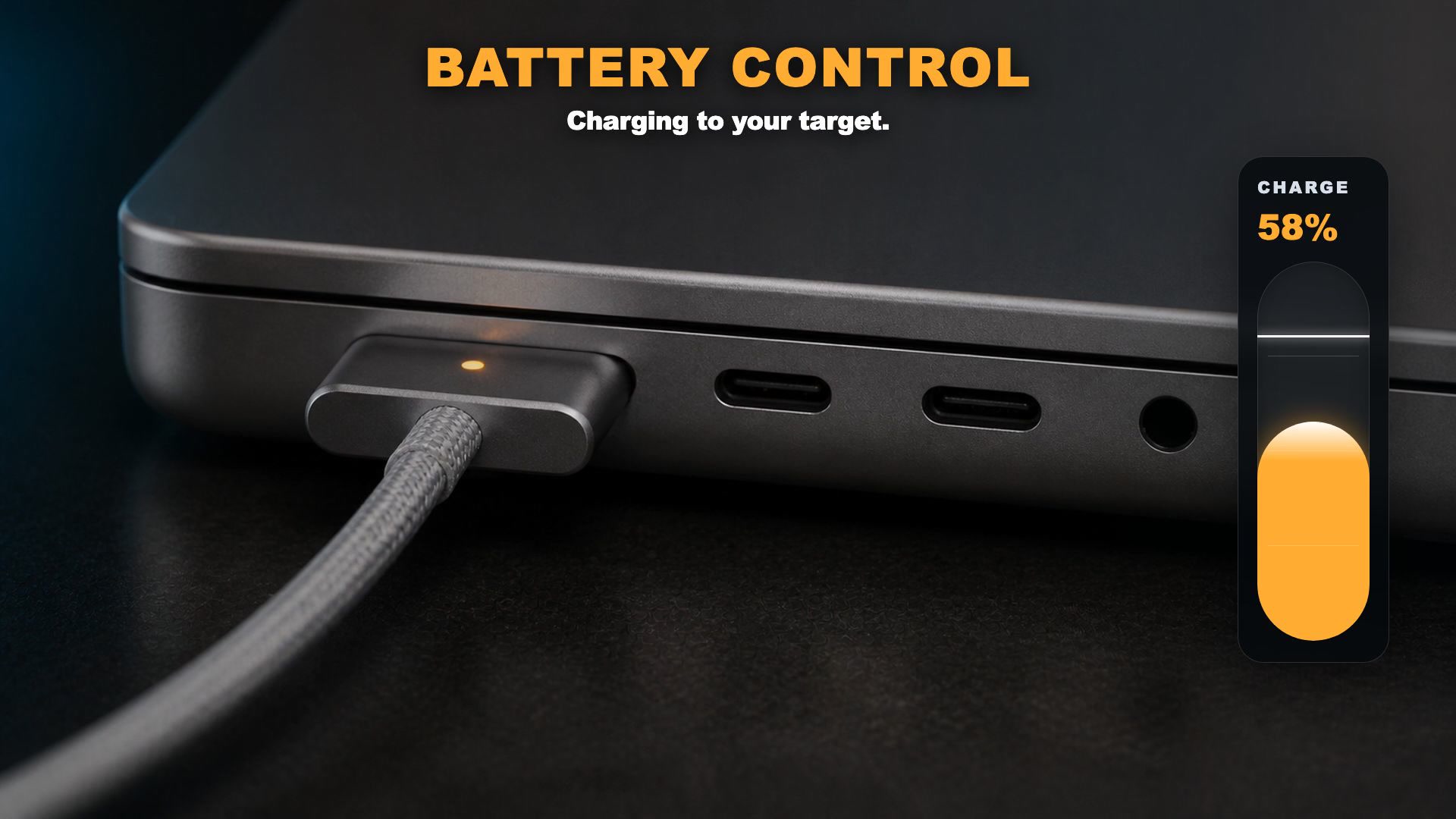
At the target, stop charging and operate primarily from external power. Confirm the current power state in the app and, on supported MagSafe setups, with the green LED.

Safety Drain

When charge is above the target, do not force the battery to drain. Safely stop charging, let real AI or rendering work bring it down naturally, then enter Power-Only at the target.

Battery & Charging Link

When Heat Protection detects a hot battery, it pauses charging and raises the fans from battery temperature. After cooling, MacBaram restores your fan curve or macOS default control.

MacBaram

Sleep & Display

Before

The familiar frustration

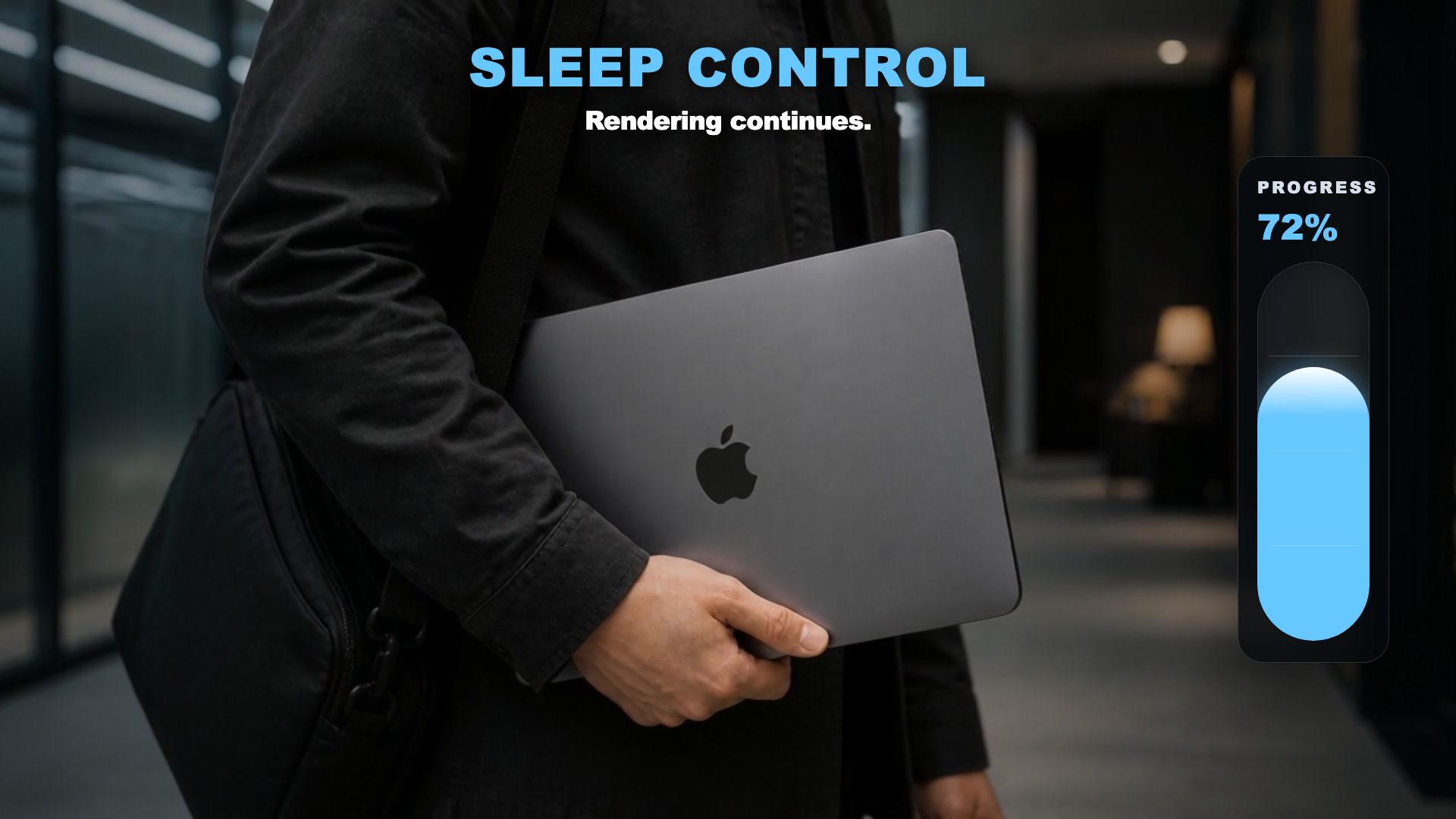
When you return in the morning to find that an overnight local-AI, render, or build job stopped because the Mac went to sleep, you lose the waiting time as well as the work. Leaving an unneeded display on just to protect the job does not feel right either.

MacBaram

The MacBaram approach

MacBaram treats sleep and display control as operating conditions for work you need to leave running, not simply as a keep-awake switch. It maintains the state needed for AI, builds, renders, and already-connected remote work while avoiding the need to leave an unnecessary display on. It does not provide remote access itself; it protects continuity so the connected Mac can finish preparing the result.

MacBaram sleep and display management feature preview
Stay Awake

Prevents ordinary system sleep while the MacBook remains open so network, AI, build, and render work can continue. Lid-closed work is handled separately by Virtual Clamshell.

Keep Display Awake

Prevent the display from dimming or sleeping when a presentation or monitoring view must remain visible. Screen locking and authentication remain macOS settings.

Virtual Clamshell

Keeps work and a virtual display session available with the lid closed, without an external monitor. It does not physically keep the built-in display lit.

The decisive reason to unite fan, battery, and sleep control

The point is not simply to place three On/Off controls in one program.The real change begins when each control responds intelligently and at the same time as conditions change.That is when a true solution for creators begins.

The first integrated control

Heat Protection

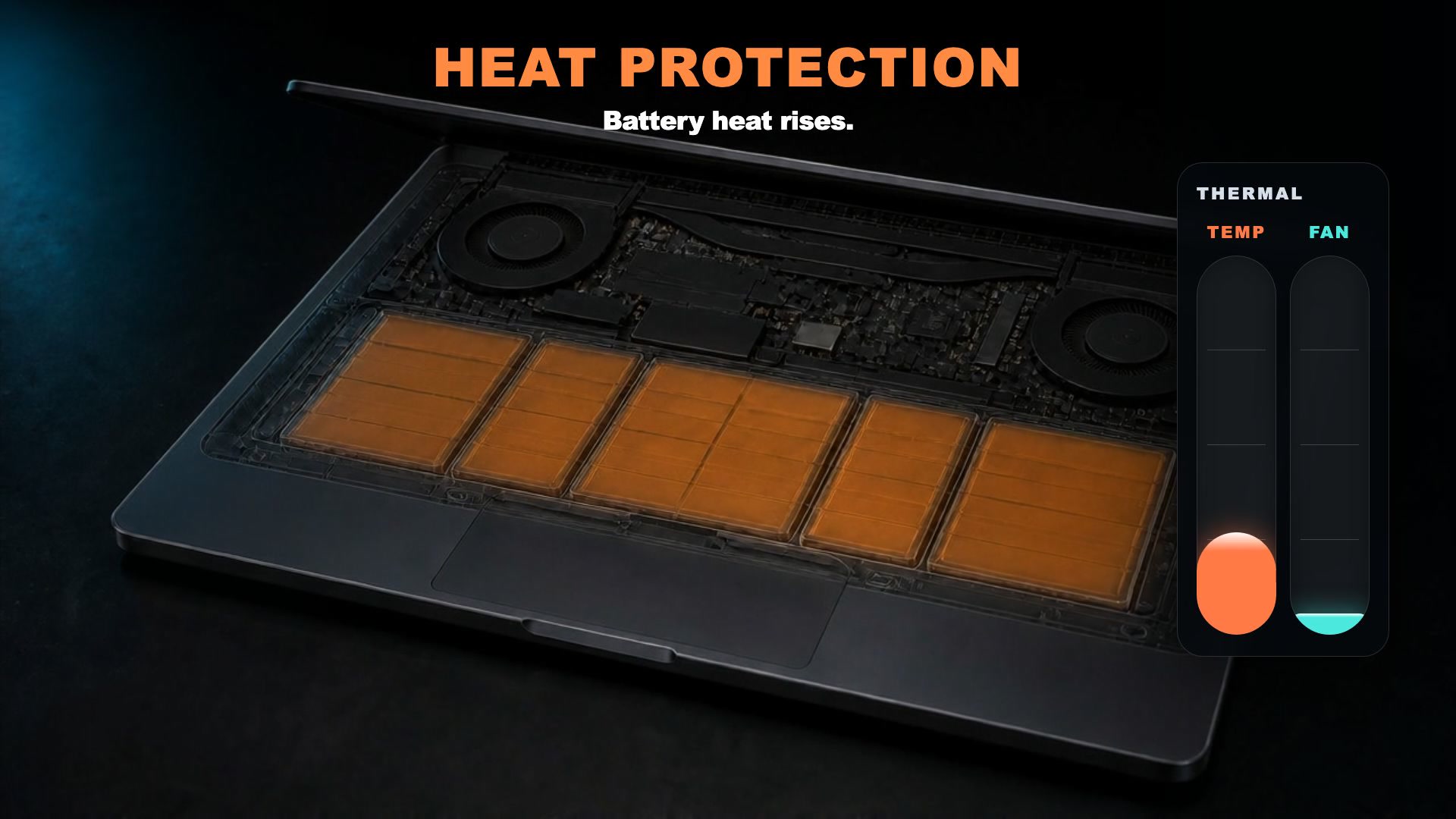
When the battery gets hot, charging stops and the fans respond.

MacBaram watches battery temperature while the Mac is charging.When extra protection is needed, it coordinates charging and cooling, then returns to the selected fan behavior as the Mac cools.

This keeps charging and cooling in one clear workflow during demanding work.

Heat Protection feature preview
01 · Observe

Watch battery temperature while charging.

02 · Coordinate

Coordinate charging and cooling when extra protection is needed.

03 · Return

Return to the selected fan behavior as the Mac cools.

The second integrated control

Low Battery Protection

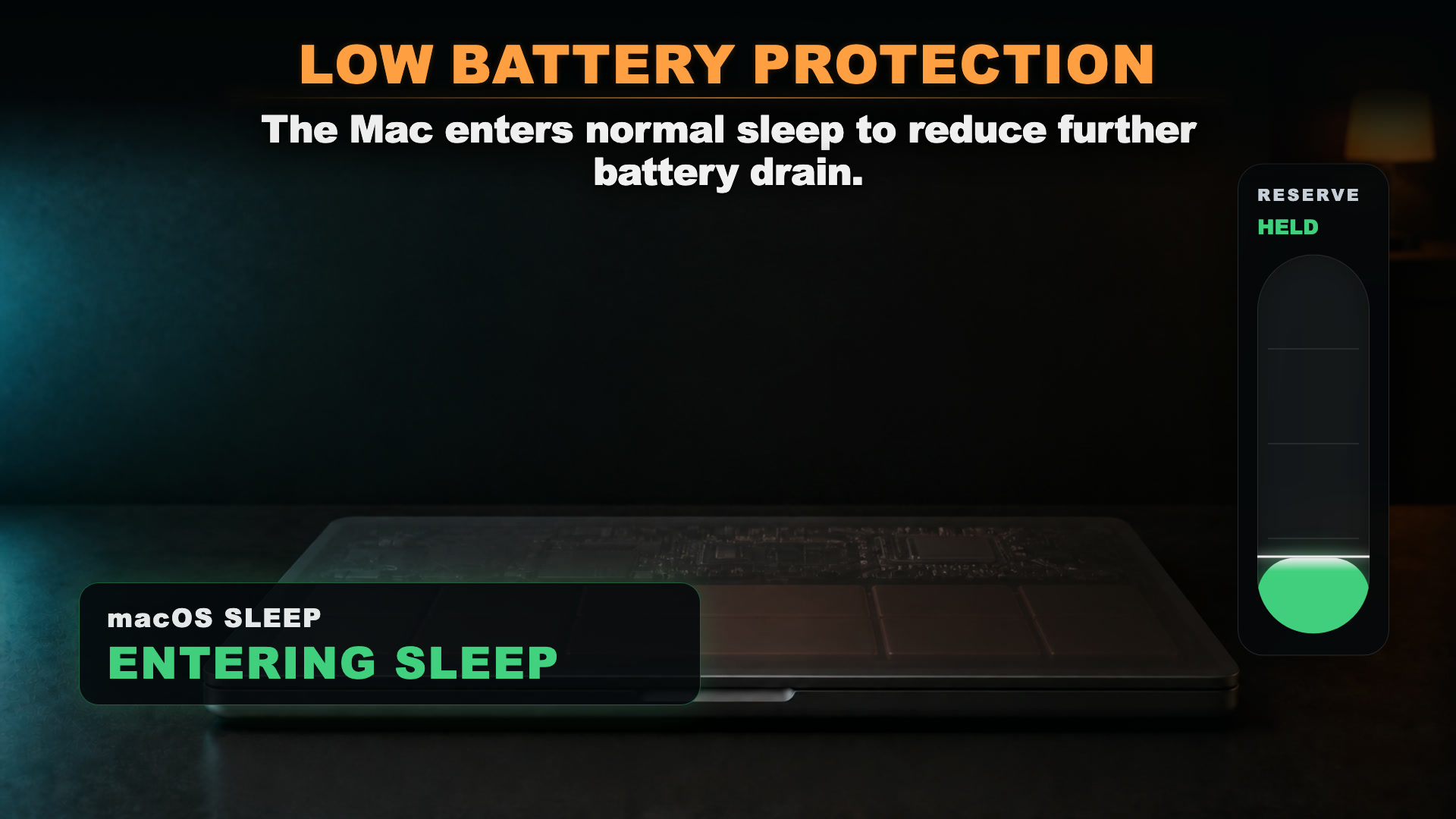
Keep working as long as possible, then let your Mac sleep at the battery level you set.

Sleep control and Virtual Clamshell can keep supported work running while battery power remains available.MacBaram follows the reserve level selected by the user and allows the Mac to return to normal sleep when that boundary is reached.This gives long battery-powered work a clear stopping point.

Low Battery Protection feature preview
01 · Continue supported work

Sleep control and Virtual Clamshell help the task continue.

02 · Follow the selected reserve

Operate against the battery reserve selected by the user.

03 · Return to normal sleep

Allow normal sleep when the selected reserve boundary is reached.

MACBARAM ROADMAP

MacBaram's unified control is only the beginning.

01 / ENGINEERING ORIGIN

MacBaram's founder was an engineer who designed electrical systems for power plants.

Plant equipment cannot be operated by guesswork. Its state must be measured and evaluated precisely so that every system can be controlled as intended.

MacBaram applies that design experience and operating discipline to the Mac. It goes beyond collecting fan, battery, and sleep controls by designing them to respond to the same state without conflict.

The Mac is becoming production equipment for AI development, long builds, and rendering workloads.

That is why reducing conflicts and unexpected behavior matters as much as adding features: the user's work and the Mac itself must be protected together.

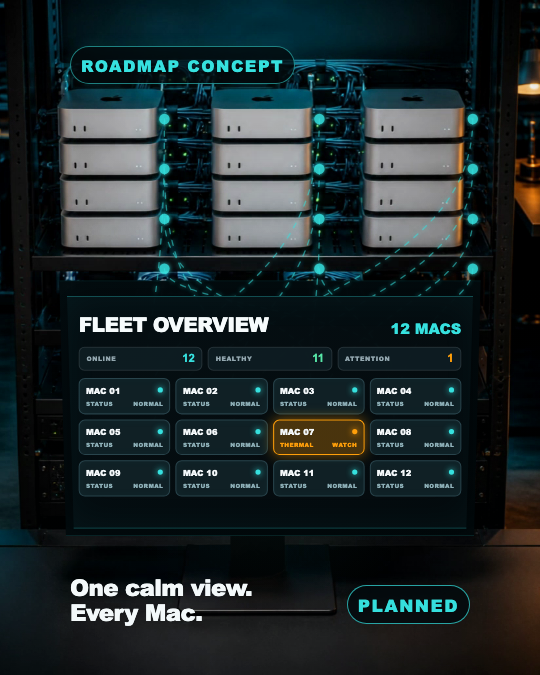
Air, Desktop, and Pro are the currently available unified-control plans. Enterprise Single is being developed to provide deeper operational visibility into one Mac, while Enterprise Fleet is being explored for operating multiple Macs together.

Roadmap · In development

ENTERPRISE SINGLE

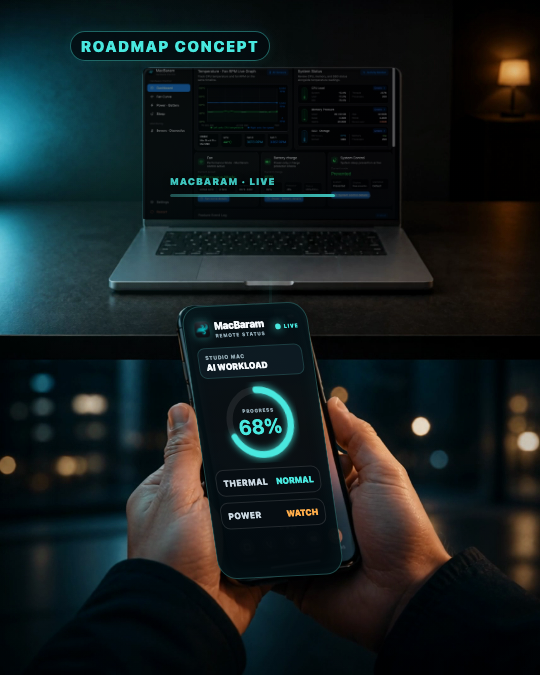
For creators and developers who leave long AI, rendering, or build jobs on one Mac and need more professional operations management than ProKeep one Mac visible, wherever you are.Starting with webhook alerts, Enterprise Single is planned as an advanced operating environment that records changes on one Mac for longer and makes their causes easier to understand.
  • Remote status alertsSend important temperature, power, and job-state changes to a phone.
  • App-aware smart coolingApply saved cooling settings for the app and workload currently running.
  • Per-device heat profilesUse calibration and accumulated data to analyze the thermal characteristics of this Mac.
  • Long-term diagnosticsTrace policy interventions and hardware conditions across 7- and 30-day timelines.
  • Diagnostic and AI reportsTurn local records into clear reports, adding AI explanations only when allowed.
  • Power anomaly monitoringDetect adapter and Power-Only state anomalies and deliver the appropriate alert.

Roadmap · In concept

ENTERPRISE FLEET

Integrated Operations for Multiple MacsFor AI farms, render farms, build servers, studios, and organizations operating 10 or more Mac mini and Mac Studio systemsOperate multiple Macs from one view.Fleet is envisioned as one place to review temperature, power, and job state across multiple Macs, then quickly distinguish abnormal devices and the action each one needs.
  • Unified status dashboardReview temperature, power, and job state across multiple Macs in one view.
  • Device group managementOrganize systems by workload and location for faster oversight.
  • Organization policy deploymentApply consistent operating policies to selected device groups.
  • Abnormal device alertsSurface the device and condition that needs attention.
  • Fleet diagnostic timelineTrace state changes and control history across systems over time.
  • Controller and API integrationPrepare a management foundation for connecting external operating tools.

PRICING

Choose the right plan for your Mac.

Try MacBaram free for 5 days after installation. Paid checkout opens inside the MacBaram app after Google sign-in, connecting the license to the correct account and Mac.

Apple Silicon M1 or laterIntel Macs are not supported

Air

$2.99/month

MacBook Air / Neo (Macs without fans)

  • Fan controlNot supported
  • Battery controlIncluded
  • Sleep controlIncluded

Desktop

$3.99/month

Mac mini / Mac Studio (Macs without batteries)

  • Fan controlIncluded
  • Battery controlNot applicable
  • Sleep controlIncluded
Recommended

Pro

$4.99/month

MacBook Pro

  • Fan controlIncluded
  • Battery controlIncluded
  • Sleep controlIncluded

EARLY PROGRAM

MacBaram Supporters

Create useful content for people who run demanding work on their Macs, and earn commission when your referrals become paying MacBaram customers.

We’re starting with a small group of reviewers and educators working in Mac, AI, development, and video.

What you get

  • Complimentary MacBaram access for approved supporters
  • A personal referral link with commission tracking
  • Direct contact for product questions and content support

The basics

  • Applications are reviewed individually during the early program.
  • Share your real experience and clearly disclose your relationship with MacBaram.
  • No self-referrals, brand-keyword bidding, spam, impersonation, or unauthorized coupon sites.
  • Commissions apply only to eligible completed payments; refunds and disputed transactions are excluded.

Commission and payout terms are provided through Creem after approval.