How do I stop a Mac from sleeping during a Final Cut Pro render?
Prevent user-idle system sleep for the render. The display can sleep separately, while Final Cut Pro and the export queue remain responsible for completion.
 MacBaram
Keep the system state required by the render, let the display sleep when appropriate, and verify the renderer, storage, power, and recovery path separately.
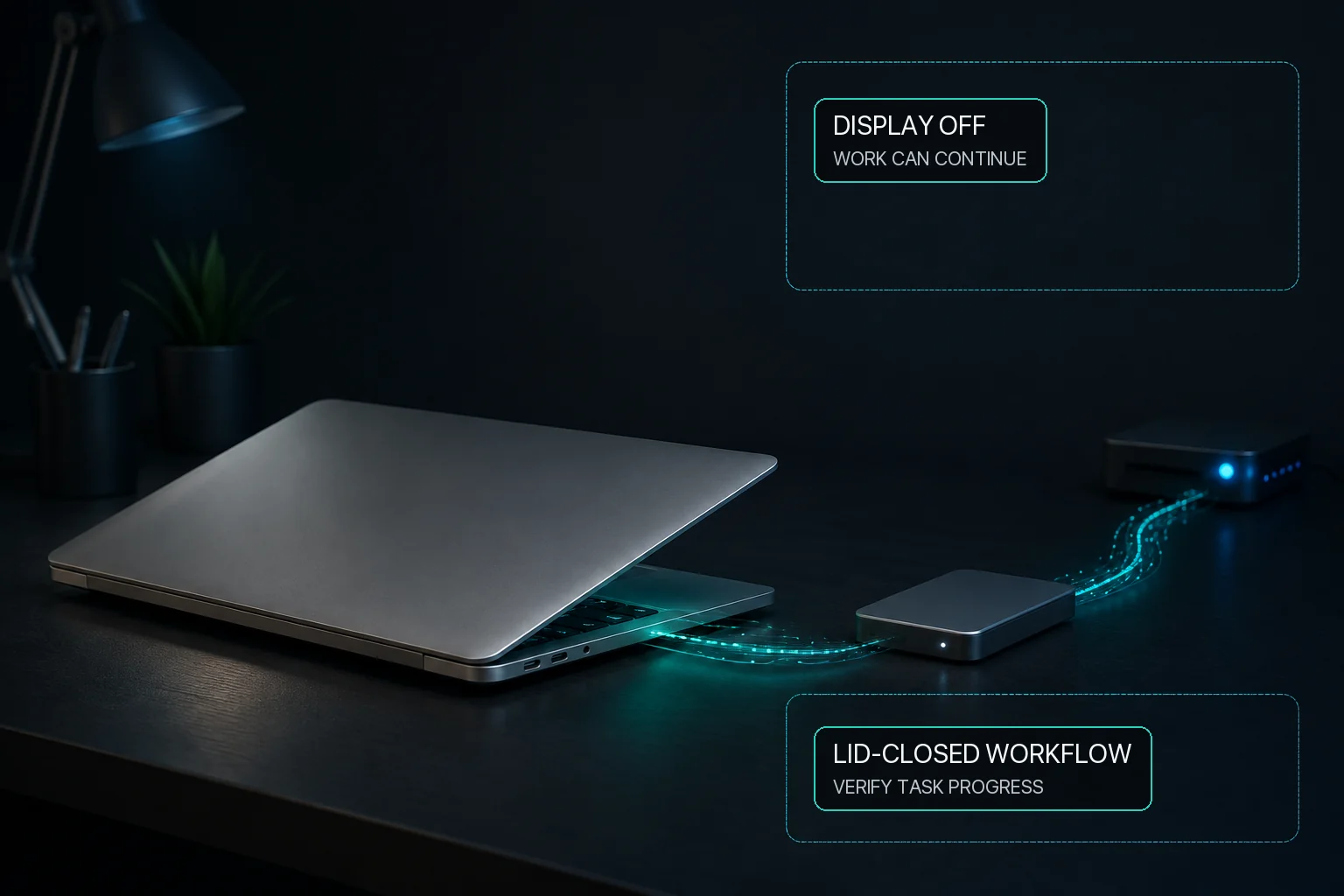
A long Final Cut Pro, Compressor, DaVinci Resolve, Premiere Pro, After Effects, Blender, Cinema 4D, HandBrake, Lightroom, or Photoshop export can keep running while the display sleeps if the Mac stays awake and the application supports unattended work. MacBaram can prevent system sleep while allowing the display to sleep. Where Virtual Clamshell is available, it can also keep a lid-closed render running without an external monitor. Test the render before relying on it. MacBaram does not guarantee render completion, speed, temperature, or output integrity.
Rendering and export can sustain CPU, GPU, media-engine, memory, and storage activity. A warm Mac or faster fan during that work does not by itself prove a fault. Observe Activity Monitor, the renderer's progress, CPU-temperature trends, and fan mode/RPM together.
Supported fan-equipped Macs can use intentional MacBaram fan behavior and later return to macOS default. A fanless Mac offers no fan control. If heat remains unexplained after the workload stops, or the Mac shows shutdowns, odor, swelling, or physical damage, stop tuning and use Apple diagnostics or service.
Ordinary idle-sleep prevention and closing the lid are different situations. Where Virtual Clamshell is available, MacBaram can keep a lid-closed render running without an external monitor. Test the render before relying on it.
Prevent user-idle system sleep for the render. The display can sleep separately, while Final Cut Pro and the export queue remain responsible for completion.
Often, yes, if the system remains awake and the renderer supports that state. Test the actual project before leaving it unattended.
Where Virtual Clamshell is available, MacBaram can keep a lid-closed render running without an external monitor. Test the render before relying on it; workload success remains separate.
MacBaram provides fan choices on supported fan-equipped Macs, but it does not guarantee render speed, a particular temperature, or damage prevention.
Verify the rendered output, preserve logs, release sleep controls, and return supported fan and charging choices to the intended routine or macOS defaults. MacBaram's restoration paths cover its supported controls, not a damaged project, failed codec, disconnected volume, or incomplete render.