Why is my Mac hot when I am not doing anything?
A Mac that looks idle may still be indexing, syncing, updating, rendering media, serving a local model, or running a browser or terminal task. Check Activity Monitor before changing fan behavior.
 MacBaram
A Mac can look idle while a process is still working. Confirm real CPU activity and recovery before changing a fan setting or assuming a hardware problem.
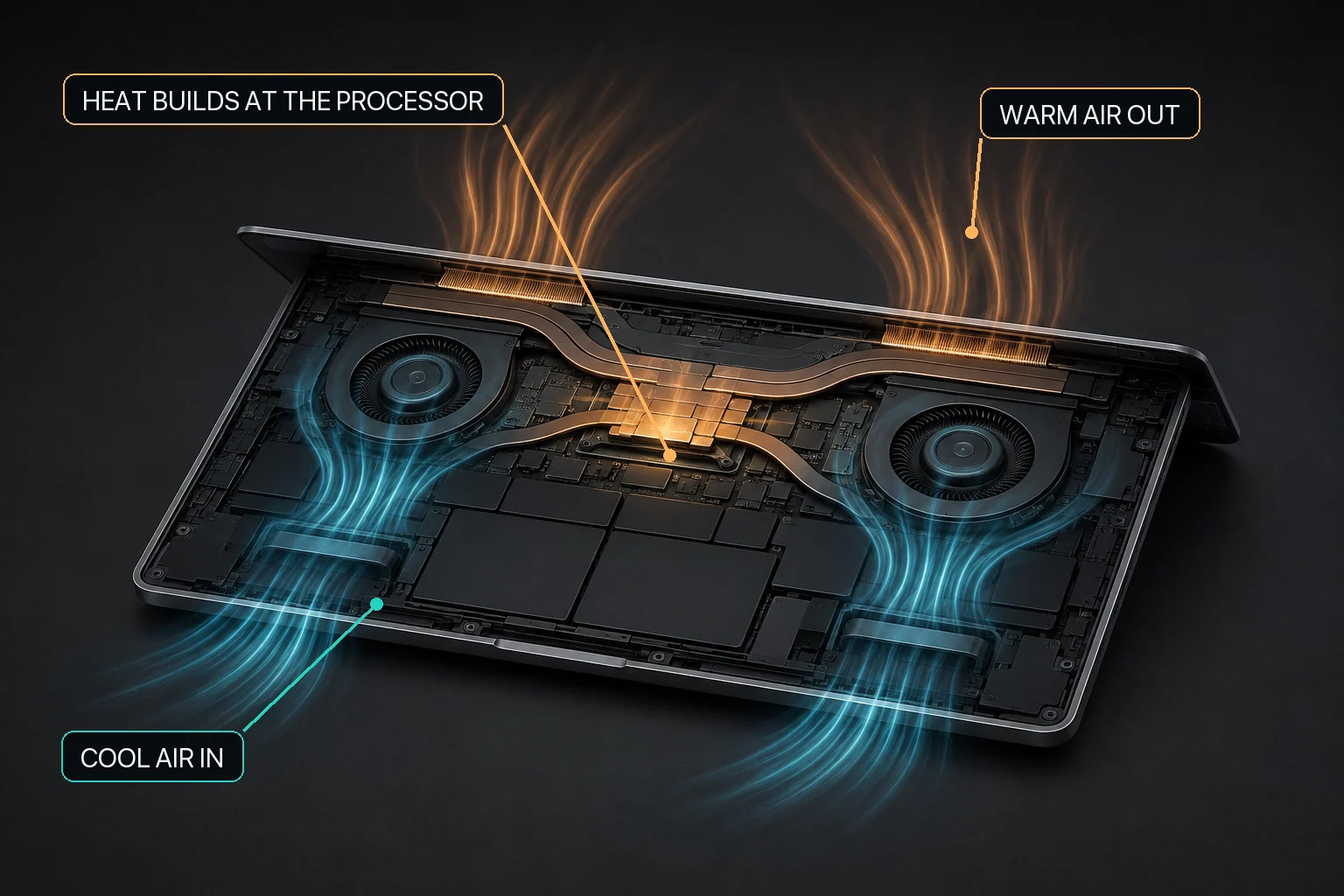
If a Mac is hot while it appears idle, first verify that it is actually idle. Apple recommends using Activity Monitor to check CPU activity when a Mac is warm or its fans run unexpectedly. Background indexing, cloud sync, browser media, updates, virtual machines, builds, local AI, and terminal child processes can continue after the visible window becomes quiet.
Do not use fan speed to hide an unknown cause. End or identify the workload, check ventilation, update macOS and the relevant apps, restart if appropriate, and then observe whether the Mac returns toward its earlier state.
A Mac that appears idle can remain hot because background CPU or GPU work is still active. Check Activity Monitor, ventilation, software state, and whether the thermal and fan trends recover after the suspected task ends. MacBaram can show the CPU-temperature trend and fan state and offers reversible fan choices only on supported fan-equipped Macs. It does not identify the responsible app or browser tab, diagnose hardware, or establish that a fan change will lower temperature, improve performance, extend lifespan, or prevent damage.
Activity Monitor identifies active processes; MacBaram does not replace it. MacBaram’s operating view is useful for comparing the overall CPU-temperature trend and fan state before and after the workload changes.
The key question is whether the Mac changes state after the suspected work stops. Record the active process, CPU activity, thermal trend, fan state, power connection, and room conditions. End only the known task, leave the other conditions stable, and observe the direction of change.
| Observation | Next step | What it does not prove |
|---|---|---|
| CPU use remains high | Identify the process and its current job. | That the cooling system is faulty. |
| CPU use falls and the thermal/fan trend recovers | Document the workload and repeat only if necessary. | A universal cooling rate or safe temperature threshold. |
| CPU use is low but abnormal heat persists | Update, restart, check ventilation, and consider Apple Diagnostics or service. | That a manual fan setting fixes the cause. |
| Fanless Mac stays warm | Reduce the workload and improve passive airflow. | That fan control is available. |
A background video, call, extension, or web application may still be active. Use the browser’s own task tools and Activity Monitor for attribution. MacBaram cannot name the particular Chrome tab or Safari page causing activity.
Confirm that the meeting app and its helper processes have settled. Then look for a falling CPU-temperature and fan-RPM trend rather than expecting an instant change.
Builds, language servers, containers, test watchers, and child processes may continue after the editor becomes quiet. Inspect the terminal and Activity Monitor before treating the heat as unexplained.
Minimized does not mean stopped. A model server or queued inference may remain active. MacBaram can show overall thermal and fan context, but there is no current public claim that it detects Ollama, LM Studio, or another app and switches a preset automatically.
MacBaram can show CPU-temperature and fan-RPM trends. On supported Macs with detected fans, it offers macOS default behavior, a unified fan curve, Silent, Balanced, Performance, and user presets, with the current save/update flow retaining up to three. A user can return fan control toward macOS defaults.
The applicability boundary is narrow: no fan control is offered when zero fans are detected. MacBaram does not attribute heat to a specific process, diagnose a sensor or fan, repair hardware, or guarantee a temperature, acoustic, performance, lifespan, or damage-prevention result. Automatic workload detection and app-specific preset switching remain HOLD and are not features claimed by this guide.
Use Apple Diagnostics or seek Apple or authorized service help when abnormal heat persists after software checks, or when it appears with repeated shutdowns, battery swelling, smoke or unusual smell, liquid damage, or a fan that sounds mechanically abnormal. A manual fan curve should not be used to conceal those signs.
A Mac that looks idle may still be indexing, syncing, updating, rendering media, serving a local model, or running a browser or terminal task. Check Activity Monitor before changing fan behavior.
No. MacBaram can place the CPU-temperature trend and fan state in workload context, but it does not automatically identify a particular app, browser tab, or hardware fault. Use Activity Monitor and the app itself for attribution.
Not as a first step. A high fan setting can change fan behavior without explaining the unexpected workload or possible fault. Identify the cause, then use only a supported and reversible control if it serves a clear purpose.
End the known task, check that its processes have settled in Activity Monitor, and observe whether CPU activity, thermal trend, and fan state recover over time. One temperature reading is not enough.
MacBaram capability wording was reviewed against the current implementation evidence on August 29, 2026. No comparative outcome dataset is presented on this page.