What should I check before leaving a Mac job overnight?
Check the workload's progress and recovery, power, ventilation, memory, storage, network, system sleep, display sleep, lid state, and the path back to normal controls.
 MacBaram
A stable overnight job needs more than a stay-awake switch. Verify the application and its dependencies, choose only the supported Mac controls that apply, and plan the return to normal.
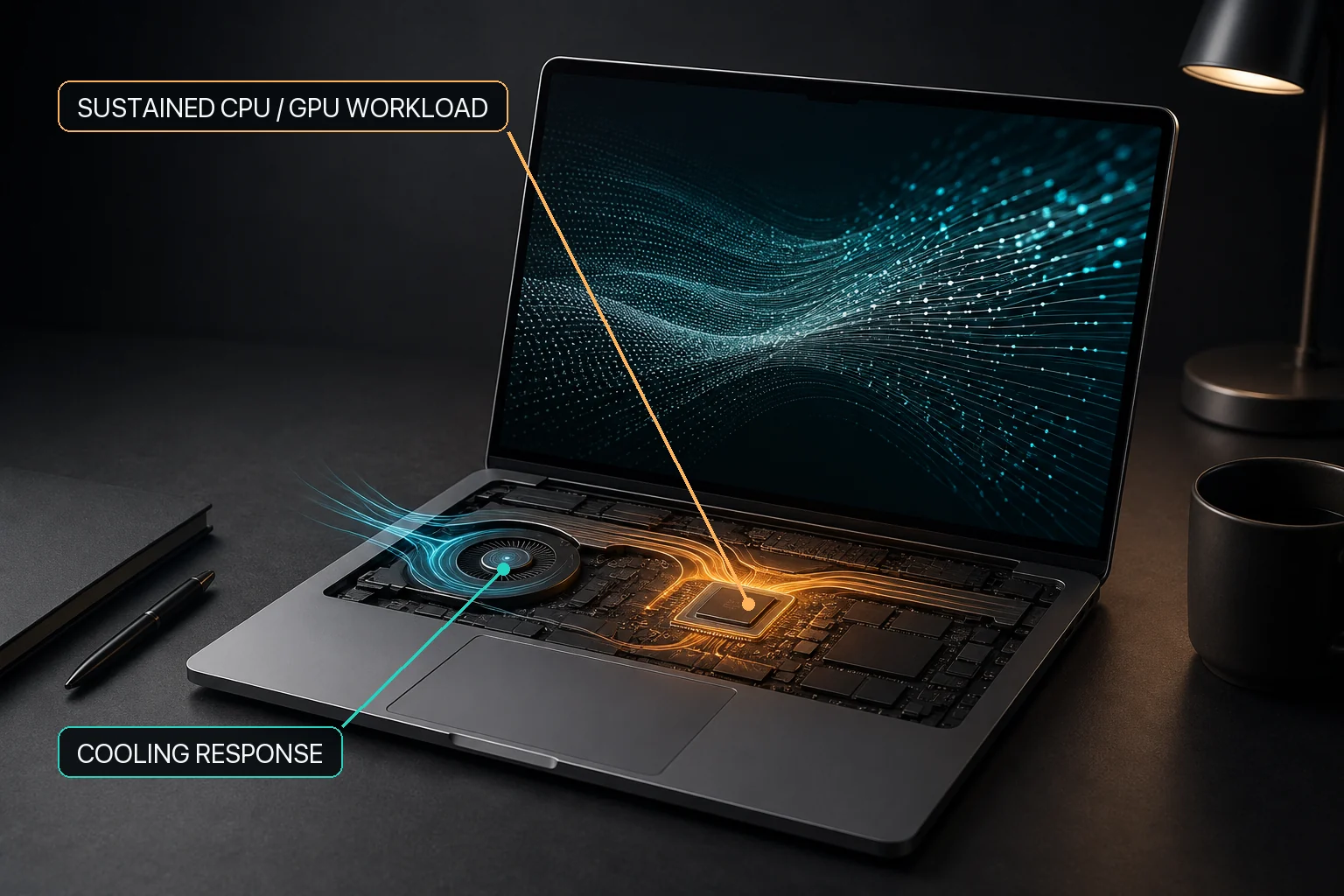
Before a long build, render, local AI run, coding-agent session, download, transfer, recording, or batch export, verify the workload's own progress and recovery, reliable power, ventilation, memory, storage, network, and output destination. Then choose system sleep, display sleep, fan behavior, charging policy, and Virtual Clamshell independently according to hardware support and actual need. MacBaram brings those Mac states into one operating view but does not guarantee application completion or turn them into one universal optimization switch.
| Area | Use when | Boundary |
|---|---|---|
| Thermal and fan observation | You need CPU-temperature and fan-RPM trends | Observation is not hardware diagnosis |
| Fan choice | A supported fan-equipped Mac needs an intentional mode | No temperature, performance, lifespan, or damage guarantee |
| Charging policy | A supported battery Mac is used in a plugged-in routine | Charge limit, Charge Protector, and thermal policy are separate choices. One-time full charge is not a current user action. |
| System sleep | The background job must continue through user idle | Does not guarantee app, network, storage, or power |
| Display sleep | The screen does not need to remain visible | Screen saver and lock authentication remain separate |
| Virtual Clamshell | A workload must continue with the lid closed and no external display | Use where available and test the exact workload before relying on it |
Record a baseline before the job, the active interval, and the recovery interval after it ends. Use the application's progress and error logs as the primary evidence of work. MacBaram can add CPU-temperature and fan-RPM trends, but one reading does not prove cause, health, throttling, or performance.
Where Virtual Clamshell is available, MacBaram can keep a lid-closed workload running without an external monitor. Test the exact workload before relying on it.
Final Cut Pro, DaVinci Resolve, Premiere Pro, Blender, Xcode, Gradle, Docker, Codex, Claude Code, Ollama, LM Studio, MLX, llama.cpp, ComfyUI, NAS tools, and recording apps are examples of long work. The same applies to test runs, automation, and already-connected remote work. MacBaram does not directly integrate with them, detect their completion, fix their errors, or guarantee their queues, network calls, builds, renders, or output.
Check the workload's progress and recovery, power, ventilation, memory, storage, network, system sleep, display sleep, lid state, and the path back to normal controls.
No. Fan, charging, system sleep, display sleep, and Virtual Clamshell are separate choices with separate support conditions. Use only the controls the job requires.
No. It can manage supported Mac operating states. The application, queue, API, network, storage, power, and recovery process remain responsible for completion.
Supported fan, charging, and sleep controls have paths back toward the intended routine or macOS defaults. Save the job output first, then end temporary controls deliberately.
MacBaram provides user-facing paths back toward ordinary macOS behavior for supported controls. Manually confirm the workload output and each user-facing control after restoration; this does not guarantee recovery from every application, operating-system, power, or hardware failure.