Why does Ollama make my MacBook hot and loud?
Local inference can sustain processor, graphics, memory, storage, and power activity. Check the active Ollama process, model, context, and run duration, then interpret CPU-temperature and fan-RPM trends.
 MacBaram
Confirm the local AI workload first, observe trends over the run, and use fan control only where supported. MacBaram does not optimize Ollama or diagnose hardware.
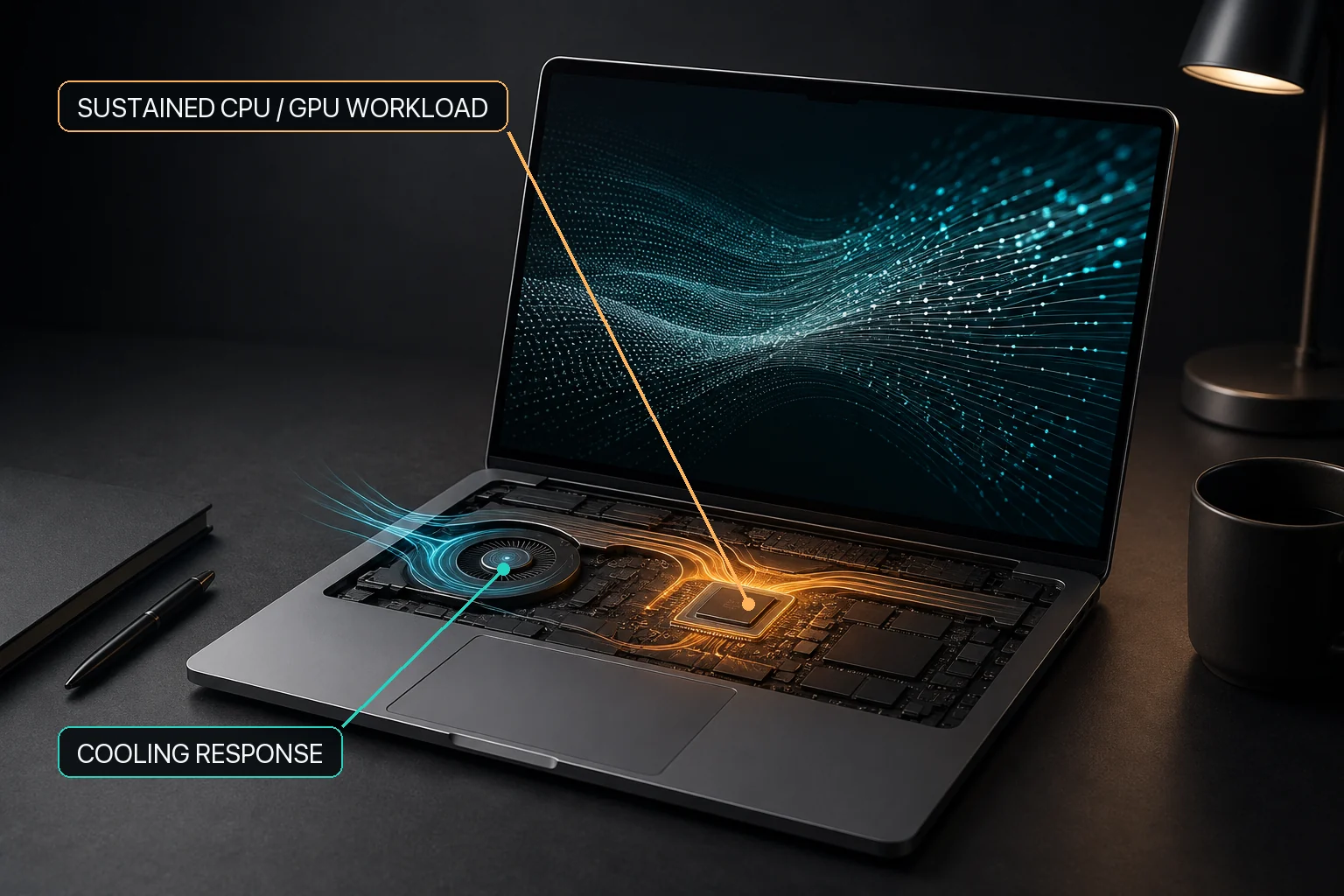
Ollama can make a MacBook warm and, on fan-equipped models, increase fan activity because local inference may sustain CPU, GPU, memory, storage, and power work. Warmth and rushing-air noise during a known workload do not by themselves establish a fault. Check Ollama and Activity Monitor first, then read CPU-temperature trends with fan mode and RPM. On supported fan-equipped Macs, MacBaram offers intentional fan choices; it does not directly integrate with Ollama, identify the active model, guarantee a temperature reduction, increase token speed, prevent throttling, or diagnose hardware.
On a supported fan-equipped Mac, MacBaram can leave the fan under macOS default behavior or apply its unified curve, Silent, Balanced, Performance, or an available saved preset, with a user-facing path back toward macOS default.
A fanless MacBook Air or other Mac with zero detected fans cannot gain active cooling through software. Other MacBaram areas—thermal context, battery charging policy, system sleep, and display sleep—have their own support conditions rather than inheriting fan availability.
LM Studio, MLX, llama.cpp, Stable Diffusion, ComfyUI, and PyTorch can also create sustained local workloads, but their model formats, memory behavior, schedulers, errors, and performance remain application concerns. MacBaram does not automatically detect or tune those frameworks. It provides a shared Mac operating view and separately supported controls.
System-sleep prevention and display-sleep prevention are separate MacBaram choices, so the system can remain awake while the display sleeps. Where Virtual Clamshell is available, MacBaram can also keep an Ollama workload running with the lid closed and no external monitor. Test an actual inference request before relying on it.
Local inference can sustain processor, graphics, memory, storage, and power activity. Check the active Ollama process, model, context, and run duration, then interpret CPU-temperature and fan-RPM trends.
Models and contexts can require different memory, compute, and runtime. Compare the actual runs rather than assuming model size alone predicts one universal temperature.
No verified throughput claim is made. MacBaram manages supported Mac operating states around Ollama; it does not optimize the model, inference engine, quantization, or prompt.
No. If the Mac has no detected fan, there is no fan for software to control. Thermal observation, charging, and sleep capabilities are evaluated independently.
A minimized window does not prove that inference stopped. Check LM Studio and Activity Monitor directly. MacBaram provides overall thermal and fan context, not automatic application-state attribution.
If the Mac stays unexpectedly hot after the workload ends, first confirm that related processes stopped. Unexpected shutdowns, odor, visible swelling, liquid damage, grinding noise, or repeated unexplained heat require Apple diagnostics or qualified service rather than a stronger fan setting.
After the run, return any supported fan choice to the intended preset or macOS default and release temporary sleep or charging controls.