Is smooth rushing air from a Mac fan normal?
It can be. Apple says fans may run faster during intensive work, and the resulting rushing-air sound can be a normal part of cooling. Check whether it matches a workload and settles afterward.
 MacBaram
Smooth rushing air and mechanical noise are not the same problem. Classify the sound before touching a fan setting.
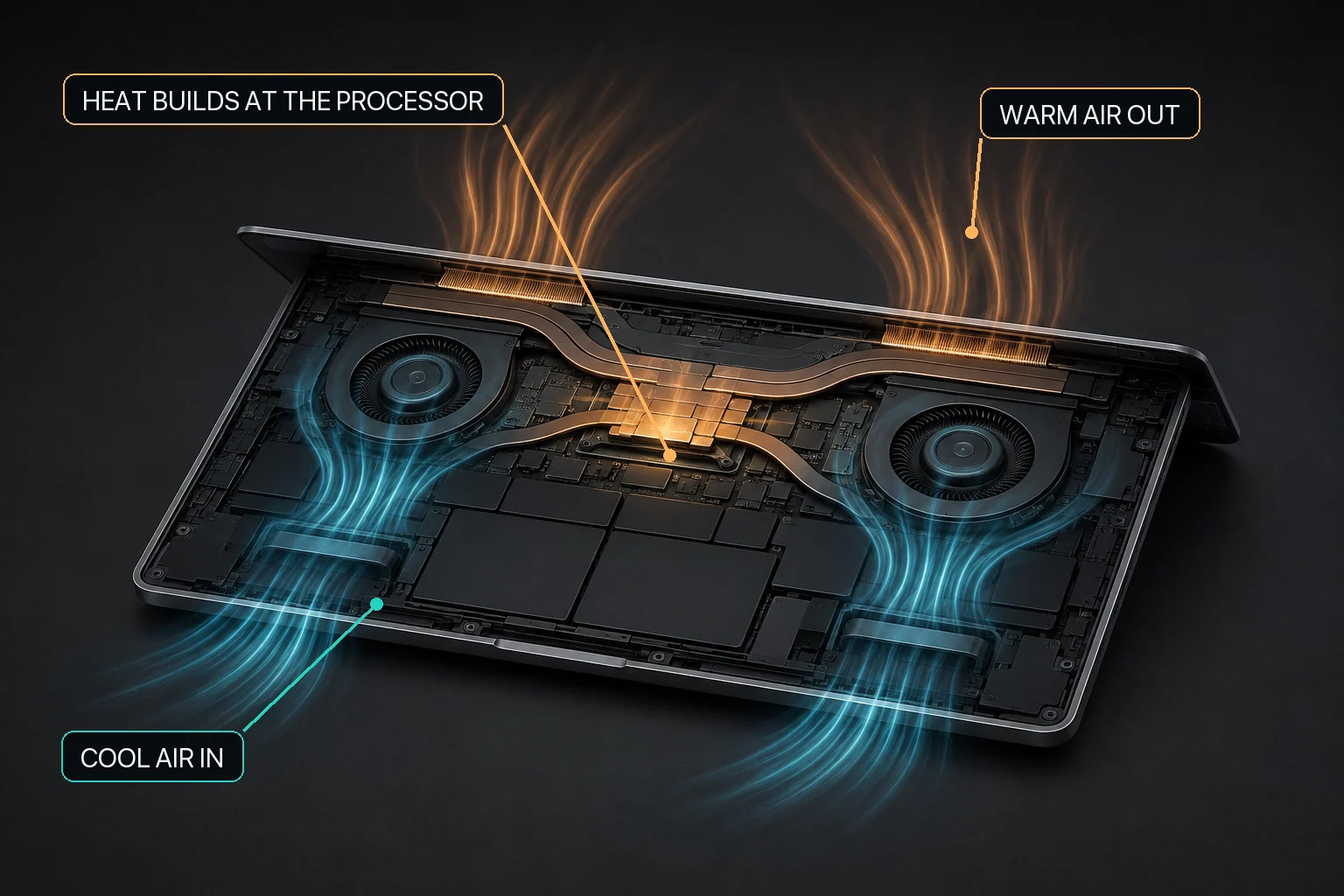
Smooth rushing air that increases with intensive work can be a normal cooling response. Rattling, clicking, scraping, grinding, pulsing vibration, or a sudden new mechanical sound requires a different path: remove obvious external obstruction, restore optional controls toward macOS defaults, and use Apple Diagnostics or service if the sound persists.
Mac fan noise should first be classified as smooth airflow or abnormal mechanical sound. Apple says faster fans and rushing-air noise can occur during intensive work. A rattle, click, scrape, grind, vibration, or persistent unexplained fan response should not be hidden with a preset. MacBaram can show CPU-temperature and fan-RPM trends and offer reversible fan choices on supported fan-equipped Macs, but it cannot diagnose or repair a fan, bearing, obstruction, sensor, or vibration source and does not guarantee silence, lower temperature, higher performance, longer lifespan, or damage prevention.
| Observed sound | Workload relationship | Appropriate next action | MacBaram role |
|---|---|---|---|
| Smooth rushing air | Rises during video, gaming, indexing, building, local AI, or other intensive work | Check CPU activity, ventilation, and recovery after the work ends. | Observe thermal trend and fan state; optional supported preset comparison. |
| Smooth but unexpectedly persistent airflow | No obvious workload | Use Activity Monitor, update, restart, and follow Apple’s model-specific fan guidance. | Provide overall trend context; do not identify the process automatically. |
| Rattle or click | Not established by the sound word alone | If persistent, stop tuning around it and seek Apple or authorized service assessment. | Restore optional fan control; no fault diagnosis. |
| Scrape or grind | Not established by the sound word alone | If persistent, stop tuning around it and seek Apple or authorized service assessment. | No repair or safe-RPM determination. |
| Pulsing vibration | Not established by the sensation alone | If persistent, stop tuning around it and seek Apple or authorized service assessment. | Visible fan state is context only. |
A sound word alone cannot prove the fault. The decision table separates the response, not the diagnosis.
Do not open the Mac based on this guide. This page does not instruct cleaning, disassembly, lubrication, part replacement, or operation at a guessed “safe” RPM.
On supported fan-equipped Macs, MacBaram can place CPU-temperature and fan-RPM trends in one view and provide macOS default behavior, a unified fan curve, Silent, Balanced, Performance, and user presets, with the current save/update flow retaining up to three. A fanless Mac with zero detected fans is unsupported for fan control.
The valid use here is narrow: compare whether smooth airflow tracks a known workload, see the visible fan state, and return optional control toward macOS defaults. A different requested RPM may change how a sound presents, but that does not identify or repair the source.
Explicit HOLD boundary: MacBaram does not diagnose the source of mechanical noise or determine safe continued operation. It does not guarantee that a preset removes noise or prevents damage. Automatic app detection and app-specific preset switching are not claimed.
It can be. Apple says fans may run faster during intensive work, and the resulting rushing-air sound can be a normal part of cooling. Check whether it matches a workload and settles afterward.
Rattling or clicking is not the same evidence as smooth airflow. Check that nothing outside the Mac is touching or blocking a vent, but do not open the Mac or tune around persistent abnormal noise; use Apple Diagnostics or service.
Stop treating it as a preset choice. Restore optional fan control toward macOS default behavior, avoid relying on the Mac for unattended heavy work, and seek diagnostics or service if the sound persists.
No. MacBaram can show CPU-temperature and fan-RPM trends on supported hardware, but it cannot identify a bearing fault, obstruction, vibration source, or other hardware defect.
A preset can change requested fan behavior on supported hardware, but making a noise less noticeable does not identify or repair its cause. Persistent mechanical noise should be investigated.
The acoustic studies support the distinction between measured and perceived fan sound; they do not identify the cause of a sound in a particular Mac.
MacBaram capability wording was reviewed against current implementation evidence on August 29, 2026. The page contains no device inspection, acoustic measurement, or fault-diagnosis result.